1. How it works
Before you can view results online you need a candidate account. Getting one takes two steps, done once per candidate:
- Consent: the candidate, or a parent or guardian, declares that they have the right to see the candidate's results and gives a contact number.
- Registration: you prove who the candidate is using the details on the statement of entry, and choose a username and password.
What you need
- The candidate's statement of entry. It has the centre number, candidate number and the candidate's name exactly as ZIMSEC has it.
- The candidate's date of birth.
- The National ID number and mobile number of the person giving consent.
2. Getting started
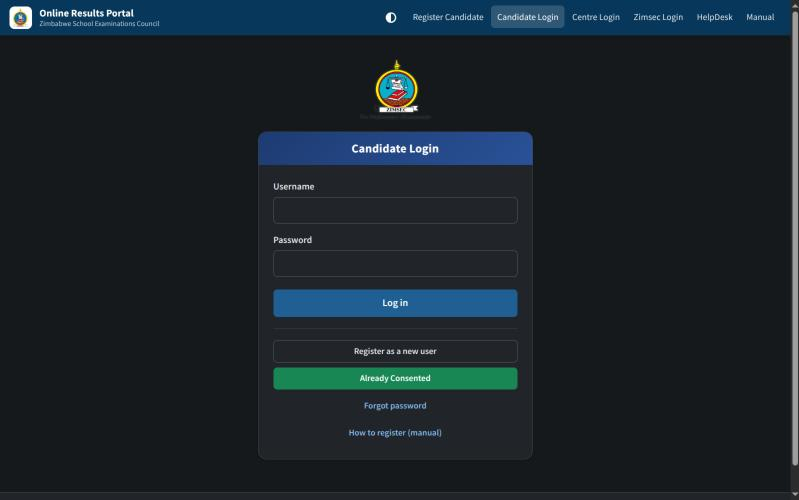
- Open the results website. The Candidate Login page opens.
- If this is your first time, click Register as a new user. This opens the consent form (section 3).
- If consent has already been given for this candidate, click Already Consented to go straight to registration (section 4).
3. Giving consent
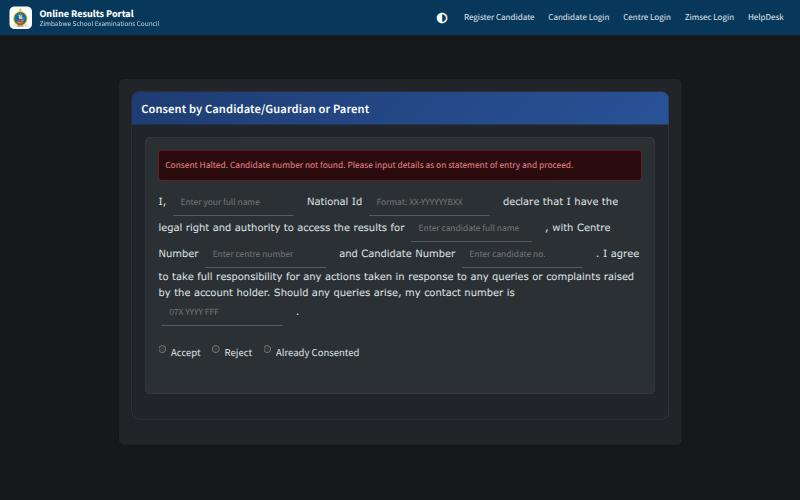
The consent form reads as a sentence. Fill in each blank, then choose what you want to do.
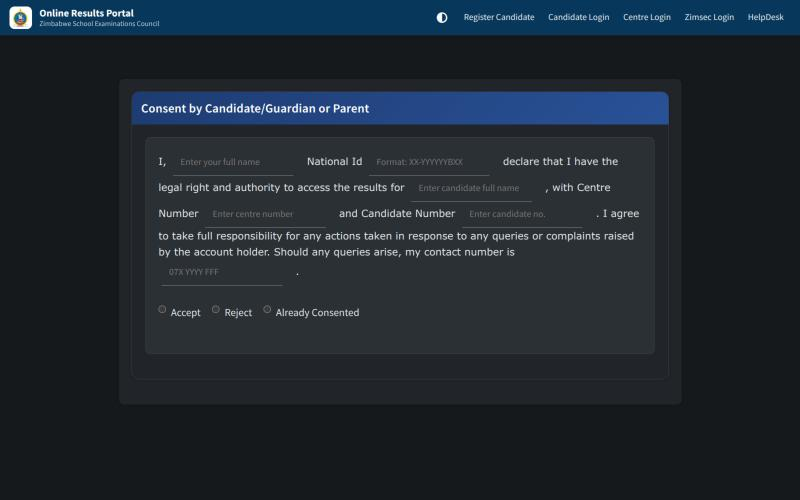
- Fill in the blanks:
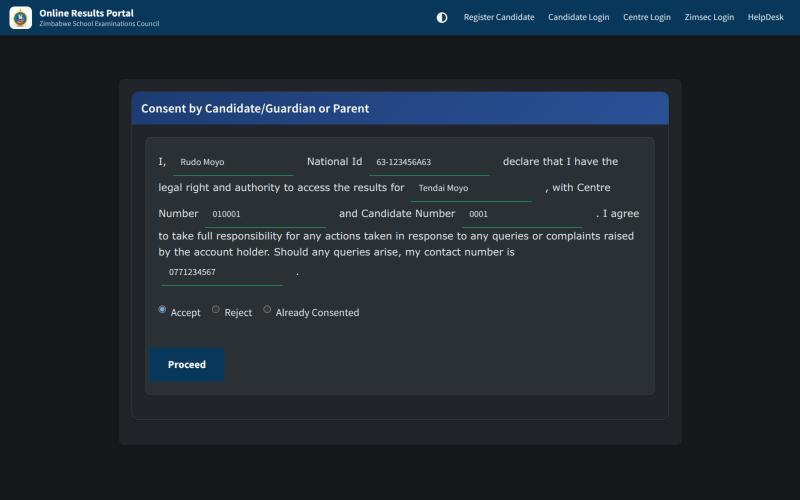
Blank What to enter Example I, (your full name) The full name of the person giving consent: the candidate, or their parent or guardian. Letters and spaces only, at least 3 letters. Rudo Moyo National Id Your National ID number with the hyphen, as printed on the ID. Letters are changed to capitals for you. 63-123456A63results for (candidate name) The candidate's full name. Letters and spaces only. Tendai Moyo Centre Number The 6-digit centre number from the statement of entry. 010001Candidate Number The 4-digit candidate number from the statement of entry. 0001contact number Your Zimbabwean mobile number, 10 digits starting 071, 073, 077 or 078, no spaces. 0771234567 - Choose one option below the form:
- Accept: you agree to the declaration. The Proceed button appears once every blank is filled in correctly.
- Reject: you do not agree. You are returned to the home page and no account is created.
- Already Consented: consent was given before. You are taken to the registration page.
- Click Proceed.
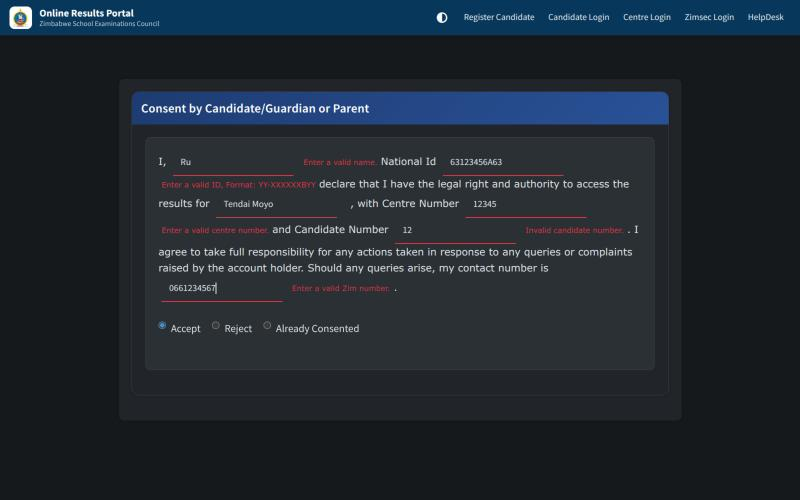
If a blank is filled in wrongly, a red message appears beside it and Proceed stays hidden until you correct it.
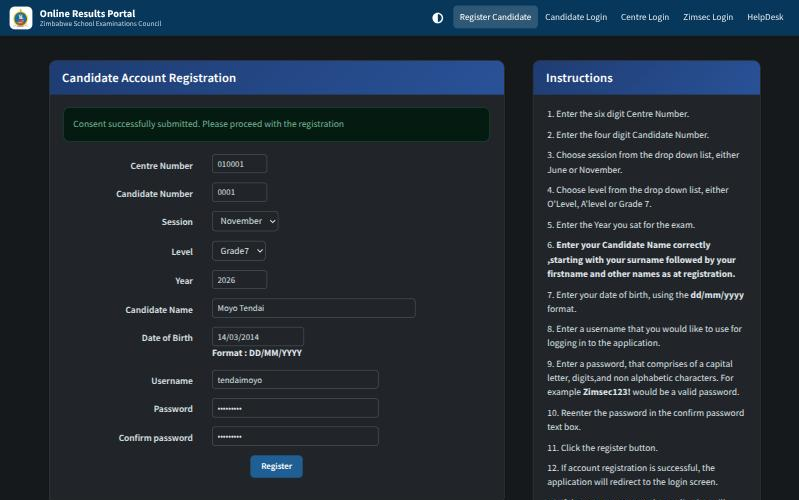
When consent is accepted you are taken to the registration page with the message Consent submitted successfully, Please register below.
4. Registering your account
Registration checks the candidate's details against ZIMSEC records. Every detail must match the statement of entry exactly.
- Fill in the form:
Field What to enter Centre Number The same 6-digit centre number used on the consent form. Candidate Number The same 4-digit candidate number used on the consent form. Session The month the exam was written: June or November. Level Grade7, Olevel or Alevel. Year The year the exam was written, for example 2026.Candidate Name The candidate's name as on the statement of entry, surname first, then first name and any other names. For example Moyo Tendai. Capital or small letters do not matter. Date of Birth The candidate's date of birth as DD/MM/YYYY, for example14/03/2014.Username The name you will sign in with. 6 to 20 characters, no spaces. It must not already be used by someone else. Password At least 6 characters, with a capital letter, a small letter, a number and a symbol such as #or!. Do not use the example password shown on the page.Confirm password Type the same password again. - Click Register.
5. Saving your login details
When registration succeeds, a Successfully Registered box shows your username, your password and the website address.
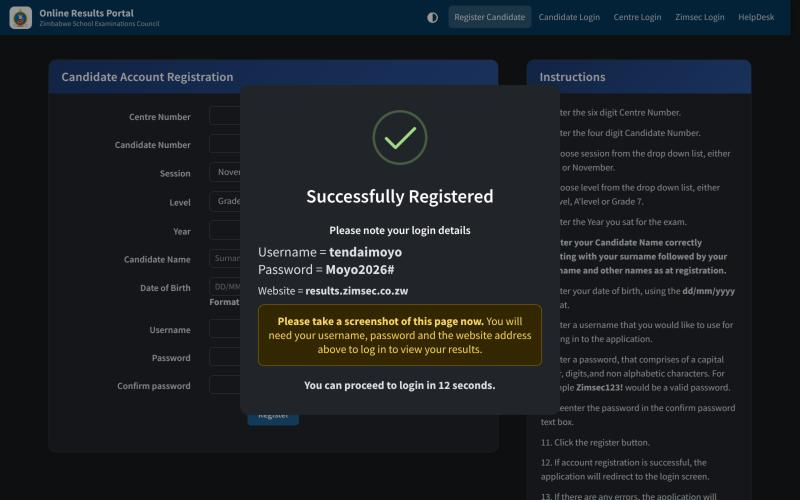
- Take a screenshot of the box, or write the username, password and website down and keep them safe.
- Wait for the countdown to finish. After 15 seconds the Go to Login button appears.
- Click Go to Login.
6. Signing in
- Open the website shown in the confirmation box.
- On the Candidate Login page, type your Username and Password.
- Click Log in.
If you have forgotten your password, click Forgot password on the Candidate Login page and follow the steps there.
7. Messages and help
| You see | What to do |
|---|---|
| Consent Halted. Candidate number not found. Please input details as on statement of entry and proceed. | The centre or candidate number is wrong, or you are on the wrong results website. Check both numbers against the statement of entry. |
| Consent has already been given for this candidate, Please register below | Nothing is wrong. Continue with registration (section 4). |
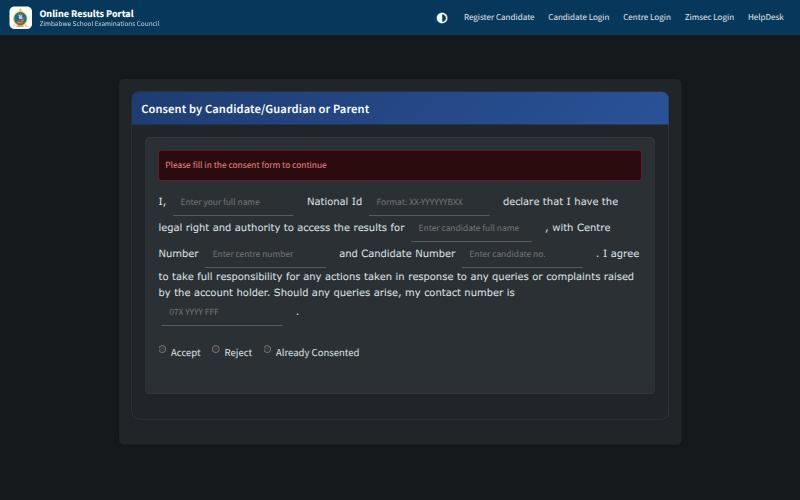
| Please fill in the consent form to continue | No consent was found for that centre and candidate number. Give consent first (section 3). |
| Registration of account has been halted. System could not find candidate with matching details. | One of the details does not match ZIMSEC records. Check the session, level, year, the name (surname first) and the date of birth against the statement of entry. |
| Registration of account has been halted. Candidate already registered another account. | This candidate already has an account. Sign in with it, or use Forgot password. |
| Username already taken. | Choose a different username. |
| Date of birth is invalid. Please use the dd/mm/yyyy format. | Type the date as day/month/year with slashes, for example 14/03/2014. |
| Use of a password given as an example is not permitted. | Choose your own password, not the example on the page. |
| Passwords must have at least one non alphanumeric character (or uppercase, digit) | Add the missing type of character to your password. |
| Something else, or you are still stuck | Click HelpDesk in the top menu for contact details. |